PVE 安装 OpenWRT 虚拟机

本文介绍如何在 PVE 上安装 Openwrt 并且对 root 分区进行扩容

VM 创建

通过 PVE 的 wizard 创建一个 VM,OS 选择 Do not use any media,磁盘根据自己的需要进行选择

BIOS 选 SeaBIOS 或者 UEFI 都行,如果需要直通 PCIE 网卡,Machine type 可以选择 q35

写入磁盘镜像

从 Openwrt 官网选择对应的版本和架构,下载 COMBINED-EFI(ext4) 镜像文件,我的虚拟机是 amd64 的,所以选择 x86/64

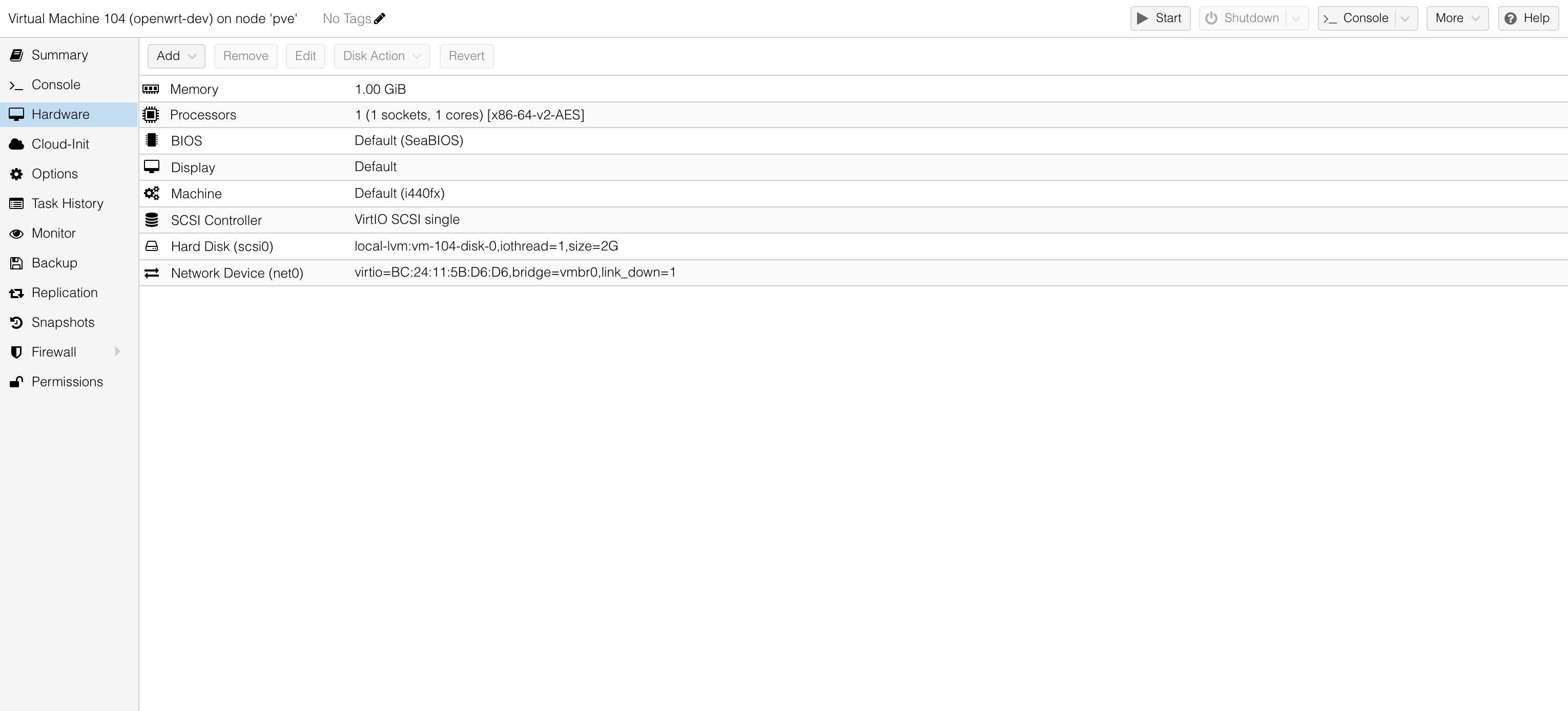
在 PVE Hardware Options 中选中对应的虚拟磁盘,点击上方菜单中的 Detach

然后在命令行执行

1
dd if=./openwrt-23.05.6-x86-64-generic-ext4-combined-efi.img of=/dev/pve/vm-104-disk-0

Resize 分区

写入磁盘镜像后默认就可以引导进入 Openwrt 的系统了,但因为默认 combined-efi 镜像中设置的 root 分区只有 104MB 大小,如果需要安装更多的软件包,需要进行一个扩容

首先我们用 fdisk 修改磁盘分区的大小

1
2
# /dev/pve/vm-104-disk-0 对应 id 104 vm 的磁盘
$ fdisk /dev/pve/vm-104-disk-0

在 fdisk 中按照以下步骤操作:

1. p 打印分区表

1
2
3
4
5
6
7
8
9
10
11
12
Command (m for help): p
Disk /dev/pve/vm-104-disk-0: 2 GiB, 2147483648 bytes, 4194304 sectors
Units: sectors of 1 * 512 = 512 bytes
Sector size (logical/physical): 512 bytes / 512 bytes
I/O size (minimum/optimal): 65536 bytes / 65536 bytes
Disklabel type: gpt
Disk identifier: 552FB917-9C3E-2018-DD4D-13FCFD198400

Device Start End Sectors Size Type
/dev/pve/vm-104-disk-0p1 512 33279 32768 16M Linux filesystem
/dev/pve/vm-104-disk-0p2 33280 246271 212992 104M Linux filesystem
/dev/pve/vm-104-disk-0p128 34 511 478 239K BIOS boot

2. d 删除分区

看着可能会比较恐怖,但不同担心,我们会使用相同的起始扇区来重建分区,所以数据不会被删掉

输入分区编号,这里我们输入 2

1
2
3
4
Command (m for help): d
Partition number (1,2,128, default 128): 2

Partition 2 has been deleted.

3. n 新建分区

  • 分区编号:2
  • 起始扇区:33280,必须和原始分区的起始扇区保持一致,看第一步 p 中的输出结果
  • 结束扇区:直接回车,或输入 + 指定大小
  • 移除 ext4 签名:N,这里一定不要移除原有的 ext4 签名,否则就直接格式化了
1
2
3
4
5
6
7
8
9
Command (m for help): n
Partition number (2-127, default 2): 2
First sector (33280-4194270, default 34816): 33280
Last sector, +/-sectors or +/-size{K,M,G,T,P} (33280-4194270, default 4192255):

Created a new partition 2 of type 'Linux filesystem' and of size 2 GiB.
Partition #2 contains a ext4 signature.

Do you want to remove the signature? [Y]es/[N]o: N

4. w 写入分区表

1
2
3
4
5
6
Command (m for help): w

The partition table has been altered.
Calling ioctl() to re-read partition table.

The kernel still uses the old table. The new table will be used at the next reboot or after you run partprobe(8) or partx(8).

此时我们磁盘的分区大小已经顺利调整完成了,但是磁盘上 ext4 文件系统的大小还保持原来的大小

扩展 ext4 文件系统

1. kpartx 挂载虚拟设备

1
2
3
4
$ kpartx -av /dev/pve/vm-104-disk-0 
add map pve-vm--104--disk--0p1 (252:11): 0 32768 linear 252:10 512
add map pve-vm--104--disk--0p2 (252:12): 0 4158976 linear 252:10 33280
add map pve-vm--104--disk--0p128 (252:13): 0 478 linear 252:10 34

通过 kpartx 挂载好的虚拟设备通常可以在 /dev/mapper/ 中找到

2. 扩容文件系统

依次执行

1
2
3
4
5
6
7
8
$ e2fsck /dev/mapper/pve-vm--104--disk--0p2
e2fsck 1.47.0 (5-Feb-2023)
rootfs: clean, 1409/6656 files, 5727/26624 blocks

$ resize2fs /dev/mapper/pve-vm--104--disk--0p2
resize2fs 1.47.0 (5-Feb-2023)
Resizing the filesystem on /dev/mapper/pve-vm--104--disk--0p2 to 519872 (4k) blocks.
The filesystem on /dev/mapper/pve-vm--104--disk--0p2 is now 519872 (4k) blocks long.
这两步修改 ext4 文件系统到对应磁盘分区的大小

3. 修改对应启动引导

openwrt 的 grub 是通过 PARTUUID 进行引导的,我们通过 fdisk 重新创建了分区,对应分区的 PARTUUID 发生了变化,所以我们需要修改对应的 grub 的引导记录

首先通过 blkid 或者 lsblk -O PARTUUID 查看对应分区的 PARTUUID

1
2
3
# vm--104--disk--0p2 即我们需要引导的分区
$ blkid /dev/mapper/pve-vm--104--disk--0p2
/dev/mapper/pve-vm--104--disk--0p2: LABEL="rootfs" UUID="ff313567-e9f1-5a5d-9895-3ba130b4a864" BLOCK_SIZE="4096" TYPE="ext4" PARTUUID="c290af32-98da-e740-80fb-5df46ec1e336"

查找到对应的需要引导的分区的 PARTUUID 之后,修改 esp 分区中 grub.conf 的引导记录

1
2
$ mount /dev/mapper/pve-vm--104--disk--0p1 ./esp
$ vi ./esp/boot/grub/grub.cfg

通常一个 grub.conf 的引导配置可能长这样,我们需要修改对应的 root=PARTUUID=xxxxx 这一部分

1
2
3
4
5
6
7
8
9
10
11
12
13
serial --unit=0 --speed=115200 --word=8 --parity=no --stop=1 --rtscts=off
terminal_input console serial; terminal_output console serial

set default="0"
set timeout="5"
search -l kernel -s root

menuentry "OpenWrt" {
linux /boot/vmlinuz root=PARTUUID=552fb917-9c3e-2018-dd4d-13fcfd198402 rootwait console=tty0 console=ttyS0,115200n8 noinitrd
}
menuentry "OpenWrt (failsafe)" {
linux /boot/vmlinuz failsafe=true root=PARTUUID=552fb917-9c3e-2018-dd4d-13fcfd198402 rootwait console=tty0 console=ttyS0,115200n8 noinitrd
}

修改完成后保存,并且 umount 掉之前挂载的 esp 分区,然后用 kpartx 清除掉虚拟设备

1
2
3
4
5
$ umount ./esp
$ kpartx -dv /dev/pve/vm-104-disk-0
del devmap : pve-vm--104--disk--0p1
del devmap : pve-vm--104--disk--0p128
del devmap : pve-vm--104--disk--0p2

至此我们就可以返回 PVE 的设备设置界面,将之前 Detach 掉的磁盘重新添加上

双击 Unused Disk 0 ,选择 Add

然后在 Options - Boot Order 中将对应的磁盘勾选上

至此我们就已经成功完成 Openwrt 的完整安装,并且修改了原始分区的大小,可以引导进入系统了